
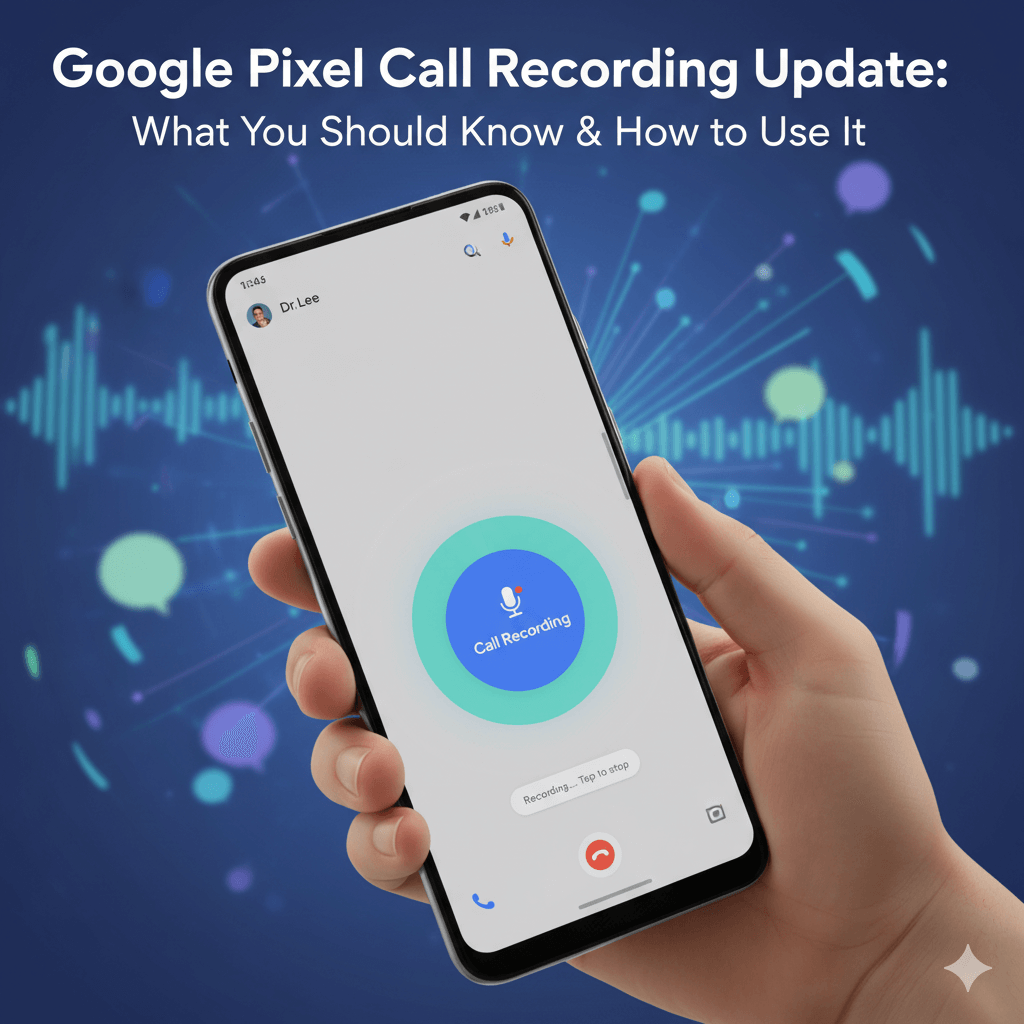
If you own a Google Pixel phone, there’s good news: the long-awaited native call-recording feature is now rolling out. Until now many Pixel users had to rely on third-party apps or miss the feature entirely. With Google finally making it official, it’s time to understand what this means, how to enable it, and the legal/region considerations you must know.
What’s New?
Google has begun expanding the call-recording feature to Pixel 6 and newer devices running Android 14 or higher.
Key points:
-
In the Phone app → Settings → Call Recording you’ll find options to enable it, auto-record from non-contacts, or selected contacts.
-
During the call you’ll see a “Call Assist” menu with a “Call Recording” button; there’s a countdown and audible disclosure that the call is being recorded.
-
Recordings are stored locally on your device; you can set automatic deletion after 7/14/30 days or never.
Why This Matters
-
Better privacy & control: With native support, you don’t need third-party apps (which may be unreliable or insecure).
-
Improved productivity: For professionals, journalists, students or freelancers (like you, Ankit), being able to record and replay calls can help capture important details, interviews or ideas.
-
Regional rollout & legal awareness: Because call-recording laws vary by country/region, Google uses in-call disclosure and limits availability based on local regulations.
Steps to Enable & Use (Simple Guide)
-
Open Phone by Google app on your Pixel (6 or newer) running Android 14+.
-
Go to Settings → Call Recording. Toggle “Turn on Call Recording”.
-
Choose your preferences:
-
Always record unknown numbers
-
Always record selected contacts
-
-
During a call you’ll see Call Assist → Call Recording. Tap to start, tap to stop. A red icon indicates recording in progress.
-
To find recordings: Go to the “Recents” tab in the Phone app. Taps show playback, share or delete.
Things to Watch Out For
-
Legality: In many places you must inform the other party that the call is being recorded. Google includes an audible message for this reason.
-
Carrier/region support: Even if your device meets the hardware & OS criteria, the feature may be blocked in some regions.
-
Storage & deletion: Large recordings can consume space. Choose auto-delete options wisely.
-
Privacy: Your recordings stay on-device only — good from a privacy perspective.
Verdict & Implications for You
For someone in digital marketing, content creation or automation (like you, Ankit), this feature is a handy tool. You could record client calls (with consent), capture interview snippets for your YouTube channel (e.g., your gaming channel or local business outreach), or streamline note-taking by replaying key segments.
At the same time, use it responsibly. Always ensure you follow local consent laws and inform participants — this protects you legally and ethically.
Final Thoughts
The addition of built-in call recording to Pixel phones is a meaningful upgrade, not just a gimmick. It enhances utility, productivity and control for users who really need it. If you haven’t yet checked your Phone app settings, now’s a good time.
As Google rolls it out more broadly, we may see other Android manufacturers follow suit — making call recording standard rather than an add-on. Keep your app updated, check for the feature, and start using it smartly.

One thought on “Google Pixel Call Recording Update: What You Should Know & How to Use It”